
Self-host Chatwoot with Docker for a website support inbox
A working Chatwoot inbox that receives and assigns test messages from a website.
Use caseClassify support messages, route reviews, and hand off tickets
Follow the official Docker guide to start Chatwoot and add a website inbox with assignment. It suits website chat and email workflows; it does not include native WeChat integration.
Source · Chatwoot · Open-source walkthrough
Problem
Section titled “Problem”Website questions land in different places, so handoffs can lose context. Chatwoot puts connected conversations in a team inbox; start with a test site and verify sending, receiving and assignment. It has no built-in WeChat channel; if you need WeChat, build and test a custom connection using the official API channel guide.
Before you begin
Section titled “Before you begin”- Use a separate Linux test VM with Docker Compose. Chatwoot needs the app, PostgreSQL and Redis; size the host from current official requirements.
- Code outside Chatwoot’s
enterprise/directory is MIT-licensed;enterprise/has a separate license. Before commercial use, check which part provides each feature you enable and review its terms.
Sources
Section titled “Sources”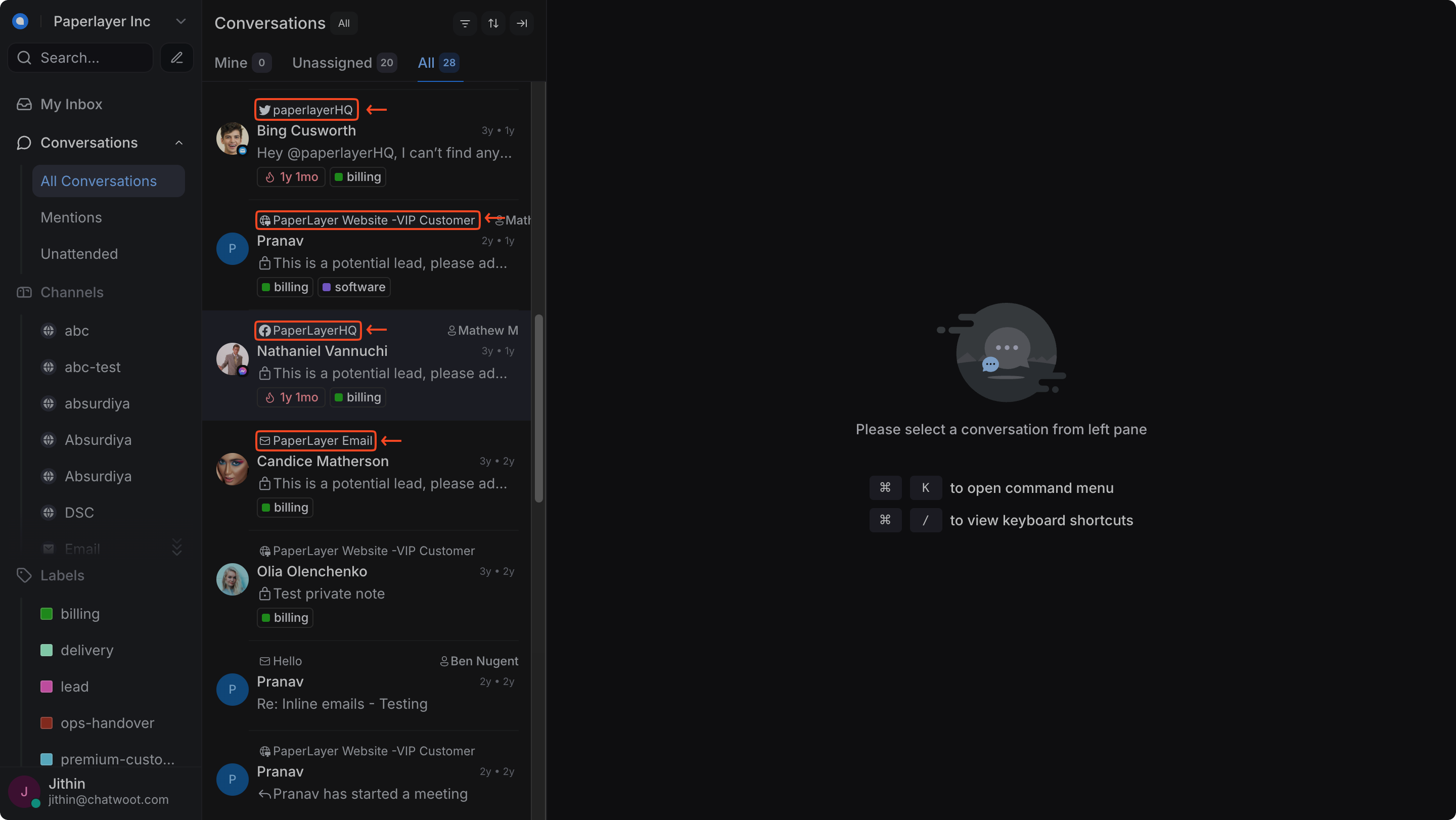
Source: the conversation inbox screenshot in Chatwoot’s official getting-started guide. The account and messages are demo data.
1. Prepare the Docker files from the official guide
Section titled “1. Prepare the Docker files from the official guide”Get the .env.example and production compose file from the Chatwoot repository. Replace the sample database and Redis passwords and generate a unique SECRET_KEY_BASE. Keep .env private.
2. Prepare the database and start services
Section titled “2. Prepare the database and start services”Run the documented db:chatwoot_prepare command, then docker compose up -d. Check the Rails API locally before adding a reverse proxy and HTTPS.
3. Create one website inbox
Section titled “3. Create one website inbox”Create a Website inbox in the admin area and add its widget snippet to a test page. Submit a fictional question and confirm it appears and can be assigned to a test agent.
4. Test a reply and reopen
Section titled “4. Test a reply and reopen”Reply as an agent, then send another message from the visitor page. Check conversation state and assignment. Confirm the app, Postgres and Redis can be backed up and restored before using real traffic.
Check the result
Section titled “Check the result”A working Chatwoot inbox that receives and assigns test messages from a website.
- A test visitor message arrives in the intended inbox.
- Agents can see assignment and conversation status.
- HTTPS, strong secrets and Postgres/Redis backups are configured.