
Connect WeCom Customer Service to LangBot: Docker and test steps
A verified test conversation between a WeCom Customer Service entry point and LangBot, with a human path for unanswered questions.
Use caseClassify support messages, route reviews, and hand off tickets
Follow LangBot’s official guide to connect an open-source bot to a WeCom Customer Service entry point. Test message flow and human handoff with fictional FAQs first.
Source · LangBot / WeCom Customer Service · Open-source walkthrough
Problem
Section titled “Problem”People using regular WeChat can contact a business through its WeCom Customer Service entry point. This guide follows LangBot’s documented setup and checks a test account end to end. It differs from an internal WeCom bot and does not make AI a safe replacement for a support agent.
Before you begin
Section titled “Before you begin”- The business must qualify for WeCom Customer Service and have a test account plus a public HTTPS callback domain.
- Prepare Docker Compose and a model provider. The LangBot repository lists Apache-2.0; model calls may cost extra. Use fictional FAQs and check the official WeCom Customer Service requirements.
Sources
Section titled “Sources”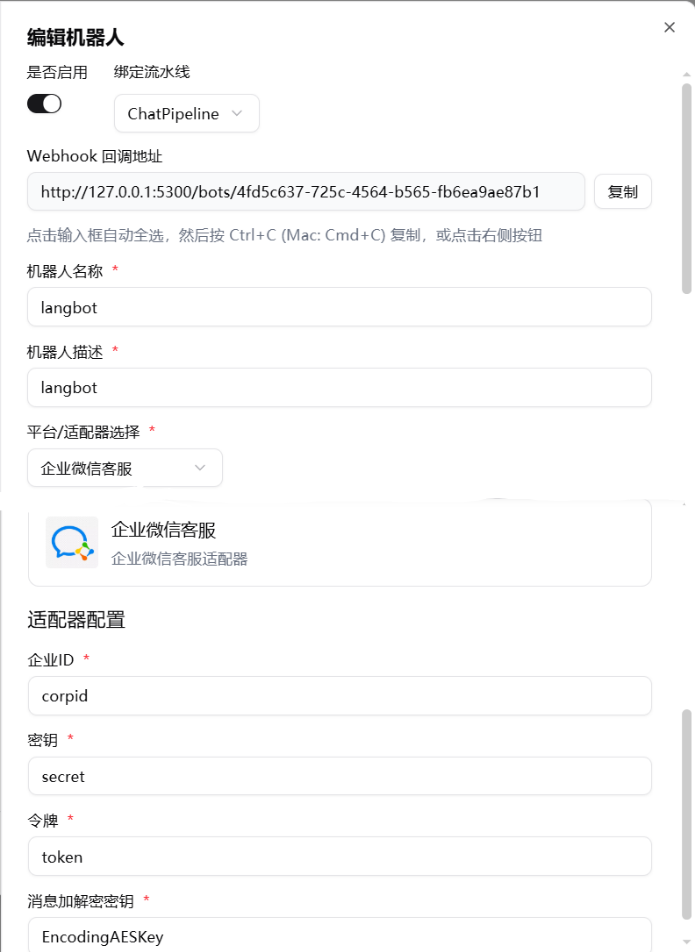
Screenshot from LangBot’s official WeCom Customer Service setup guide. The localhost URL and corpId, secret, and token are examples; production callbacks need a public HTTPS URL. Source: official setup guide.
1. Deploy the minimal test setup
Section titled “1. Deploy the minimal test setup”Clone LangBot and enter its docker directory. Follow the official deployment guide to start the base Compose services. A first FAQ test needs the bot and model; skip the all profile that adds a sandbox.
2. Add a small FAQ
Section titled “2. Add a small FAQ”Start with 5–10 approved answers. Test one question with an answer and one without. Ask the bot to hand unsupported questions to a person; leave refunds and account changes out of scope.
3. Set the WeCom Customer Service callback
Section titled “3. Set the WeCom Customer Service callback”Follow the official LangBot setup steps. Enter the Enterprise ID, Token, and EncodingAESKey, save LangBot’s public callback URL, then copy the generated Secret back to the bot as documented and restart it.
4. Test with a customer-service account
Section titled “4. Test with a customer-service account”Create a test account and run one answered and one unanswered question. Confirm the right pipeline receives each chat, an agent can take over, and logs contain no secrets. Decide about real traffic only after these checks.
Check the result
Section titled “Check the result”A verified test conversation between a WeCom Customer Service entry point and LangBot, with a human path for unanswered questions.
- The WeCom Customer Service admin accepts the LangBot callback settings.
- Test messages round-trip, and unsupported questions do not get invented answers.
- A human can take over; logs expose no Secret or customer data.